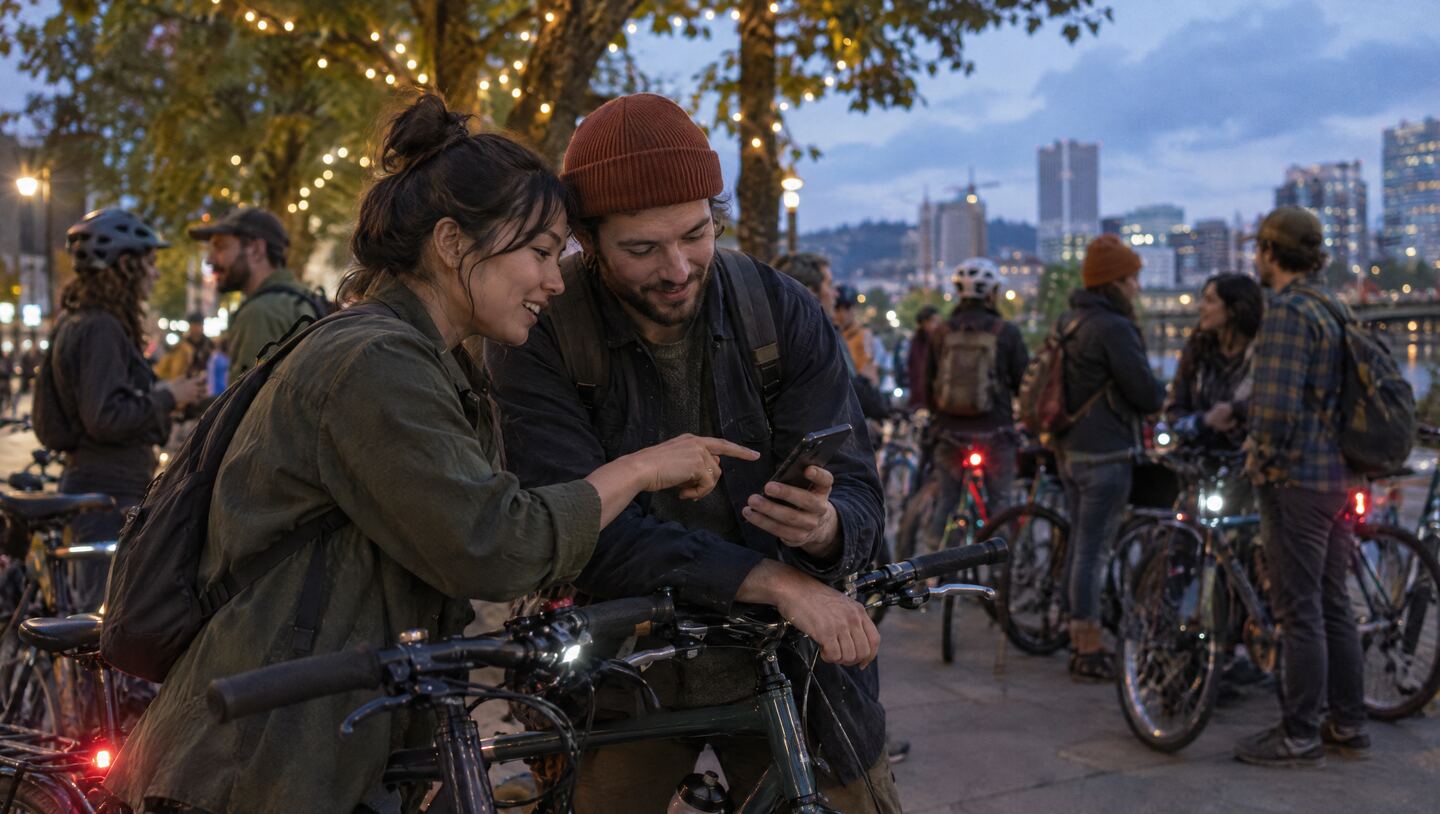
Getting started with Biiikes
New to Biiikes? Welcome! We’re glad you’re here.
On this page 17 sections
- First, a little about Biiikes
- Let’s find you a ride!
- Looking for something specific? Try Find.
- See what’s happening on the map
- Found an interesting ride? Here’s what you’ll see.
- Do I need to make an account?
- Ready to go? Tap “I’m going.”
- Add rides to your own calendar
- What happens after a ride?
- Let Biiikes keep you in the loop
- Make your profile your own
- Who can see that I’m going to a ride?
- Find your people
- What if there’s someone I don’t want to interact with?
- Managing your account
- Need a little help?
- Ready to ride?
Portland is full of great group bike rides. There are casual neighborhood cruises, costume rides, musical adventures, long weekend excursions, and plenty of wonderfully unusual things happening on two wheels.
Biiikes helps you find them.
Whether you’re looking for something fun to do this weekend, hoping to meet more people who ride bikes, or just curious about what’s happening around town, you’ve come to the right place.
And the best part? You don’t even need an account to get started.
This guide will show you around Biiikes, explain how everything works, and help you get the most out of it.
First, a little about Biiikes
Biiikes is a calendar and social network built around Portland’s group cycling community.
It helps you discover rides, see who’s going, connect with other riders, and keep track of the rides you’re interested in.
You can use Biiikes at biiikes.com, or through the iPhone and Android apps.
Most features work across all three. Where something works a little differently, we’ll point it out.
Who organizes the rides?
Good question!
Biiikes doesn’t actually organize or lead the rides you’ll find here.
Most come from Shift, Portland’s volunteer-run community bike calendar, where anyone can organize and post a ride.
Individual ride leaders are responsible for their own events. Biiikes brings those rides together in a modern calendar, adds some useful features, and makes it easier to discover rides and connect with people who are going.
When a ride leader updates their listing on Shift, Biiikes automatically picks up the changes.
You’ll also find a link back to the original Shift listing on each ride page.
So think of Biiikes as a way to discover what’s happening and find your people, rather than the organization putting on the rides themselves.
Let’s find you a ride!
The calendar is the heart of Biiikes, and it’s the first thing you’ll see when you open it.
You’ll find upcoming rides organized by day, starting with today and moving forward.
Maybe there’s a casual ride happening tonight. Maybe someone is organizing a big themed ride this weekend. Maybe there’s something interesting next month.
It’s all there to explore.
Getting around the calendar
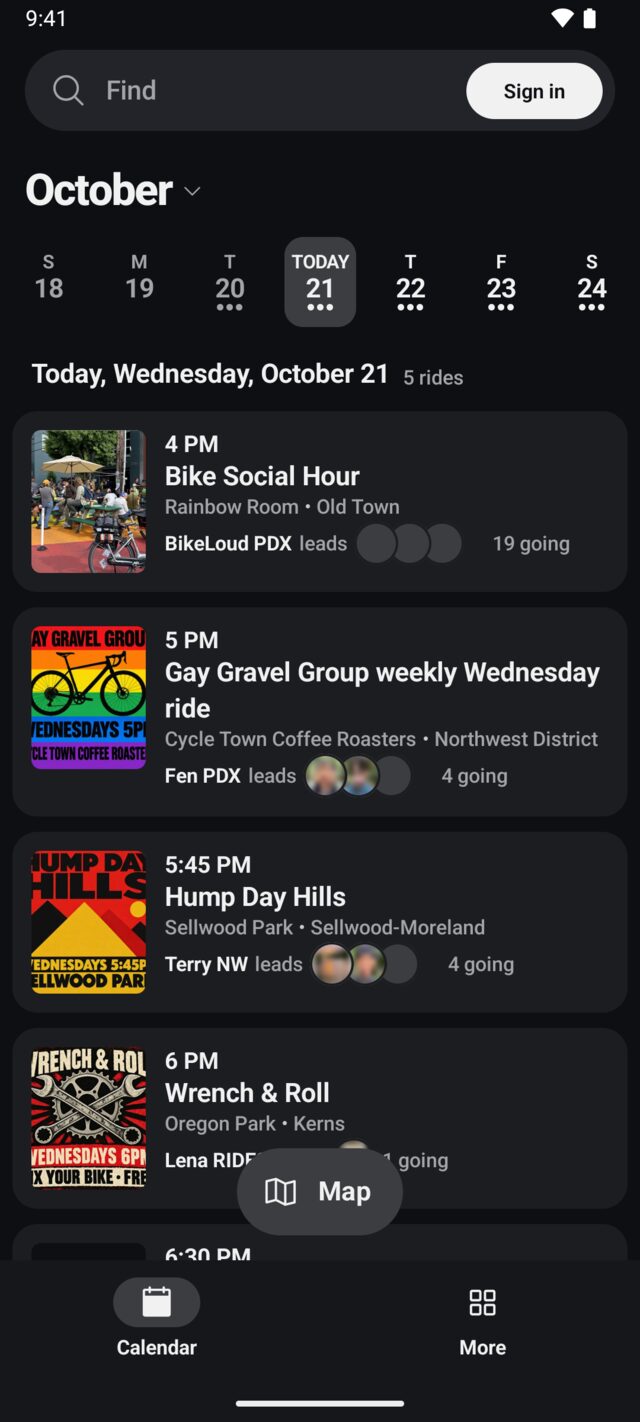
At the top of the calendar, you’ll see the days of the week.
Tap a day to jump to its rides, or browse ahead to see what’s coming up.
On the website, you can tap the month’s name to open a full monthly calendar. Little dots beneath each date give you an idea of how many rides are happening that day.
You can also use the arrows to move between weeks, and the Today button to jump back to the current date.
As you scroll down through the rides, the calendar navigation stays at the top so you always know what day you’re looking at.
Android works similarly, with a monthly calendar you can expand and a handy shortcut back to today.
On iPhone, you can swipe through the weeks at the top of the calendar and browse the rides below.
And if you’ve been scrolling for a while, don’t worry. You can always find your way back to today.
Your rides, all in one place
Once you’ve signed in and started choosing rides, you’ll see a Your rides section near the top of your calendar.
It’s a convenient way to keep track of what you’ve got coming up this week.
This section also includes one-time rides you’ve saved for later.
No more trying to remember which ride you were excited about three days ago.
In the apps, Your rides is also its own tab at the bottom, with everything you’re going to and have saved, and Recently ridden for the rides behind you.
Looking for something specific? Try Find.
Sometimes you just want to see what’s out there.
Other times, you have something particular in mind.
Maybe someone mentioned a ride called Mellow Mondays. Maybe you want to see what starts at Laurelhurst Park.
That’s where Find comes in.
Type a ride’s name or a meeting location, and Biiikes will show you matching rides.
You can find it in a few different places:
- On iPhone: Tap the Find tab.
- On Android: Use the Find bar at the top.
- On the website: Tap the magnifying glass on your phone, or Find at the top of the desktop site.
Narrow things down with filters
Portland has a lot of rides, especially during the summer.
If you’re feeling overwhelmed by all the choices, filters can help.
Tap Filters on the website, or More filters in the mobile apps.
You can narrow your results by:
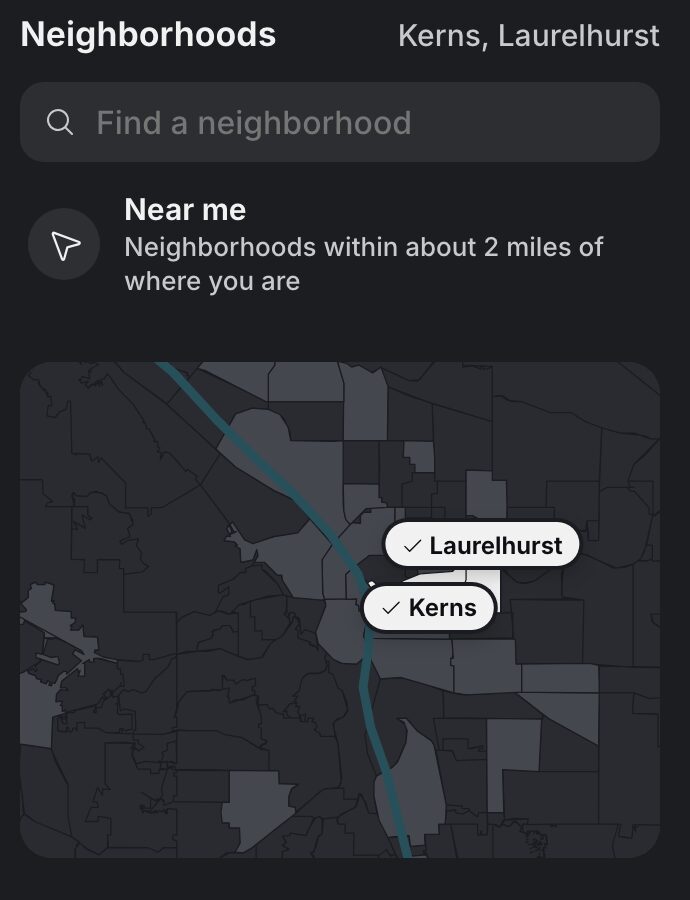
- Neighborhoods. Choose one or more parts of Portland you’d like to ride from. On the website, there’s even a neighborhood map you can use to make your selections.
- Distance. Looking for something short and sweet? Or something a little more ambitious? Filter rides by their advertised distance. You can also include rides that don’t have a distance listed.
- Who it’s for. Choose Everyone, Kids welcome, or 21+ to find rides that fit what you’re looking for.
Want to start fresh? Tap Clear all to remove your filters.
What about rides near me?
There’s a shortcut for that, too!
Tap Near me, and Biiikes will look for rides in neighborhoods within about two miles of your location.
The first time you use it, your device will ask whether you’d like to share your location.
Prefer not to? No problem.
If you’re signed in and have set a place you usually ride from, you can choose Use where you ride from instead.
You don’t need to share your current location to enjoy the rest of Biiikes.
See what’s happening on the map
Sometimes it’s easier to find a ride when you can actually see where everything is happening.
That’s why Biiikes has a map view.
Instead of browsing through a list, you can explore rides plotted around Portland.
It’s especially handy if you’re trying to find something close to home, near work, or in a neighborhood you’ve been meaning to visit.
Tap Map from the calendar to get started.
On the website, the map starts by showing rides for the week. You can choose a date to narrow it down to a single day.
On Android, the map starts with one day, and there’s a Day | Week switch that lets you change your view.
There’s a Map button on iPhone, too.
Tap a ride on the map to learn more about it. Rides that have already started appear faded, but you can still open them.
Want to go back to the calendar? Just tap List.
On the website, you can also use Show where I am to see where you are in relation to the rides.
Found an interesting ride? Here’s what you’ll see.
Every ride on Biiikes has its own page, packed with useful information to help you decide whether it’s right for you.
Let’s take a look around.
When and where does it start?
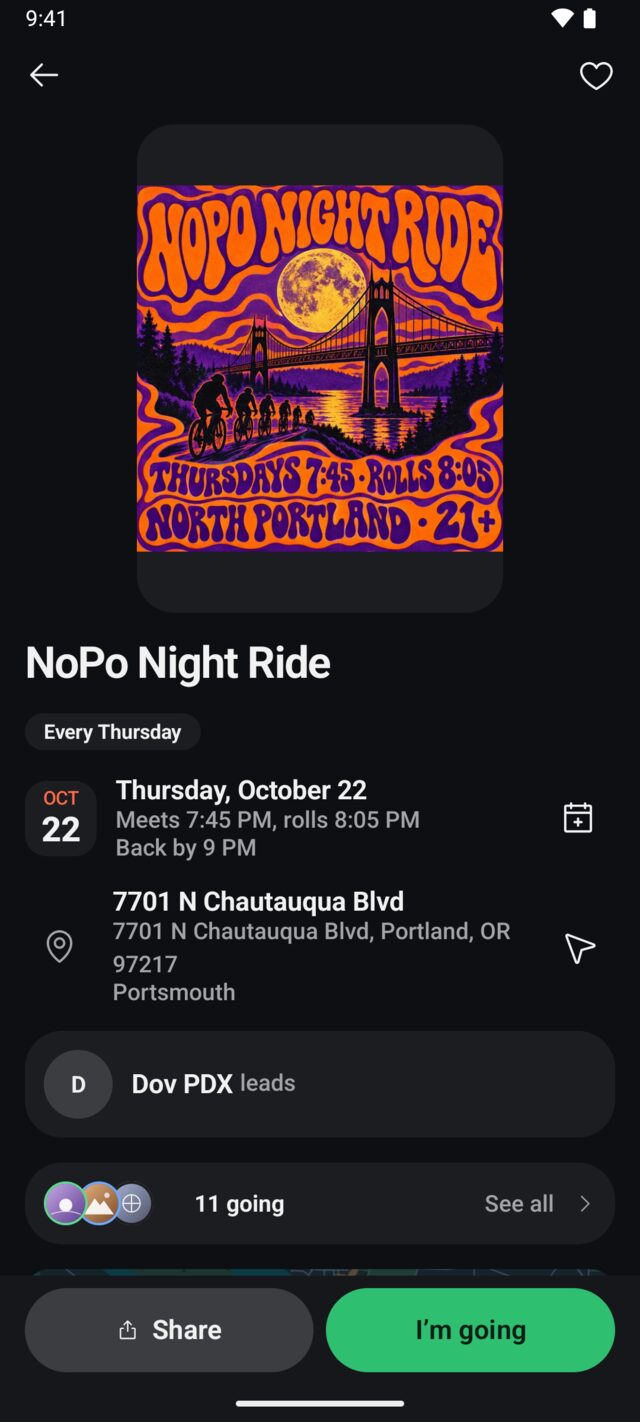
Near the top, you’ll see when the ride meets and, if the leader provided one, when it actually leaves.
For example:
Meets 6 PM, rolls 6:30
That means people start gathering at 6, but the ride doesn’t leave until 6:30.
If you see two times, plan to arrive at the first one. That gives you a chance to find the group, say hello, and get settled.
You’ll also find the meeting location, complete with a map and directions.
And if you want to put the ride on your personal calendar, tap Add to calendar.
What’s the ride actually like?
Scroll down to About the ride.
This is where the ride leader describes what they’ve planned, and it’s worth reading.
You’ll get a much better feel for whether the ride is casual or challenging, whether there’s a theme, and what kind of experience to expect.
When the information is available, you’ll also see details like:
- Distance: How far the ride is expected to go.
- Climb: How much uphill riding is involved.
- Pace: How fast the group expects to travel.
- Who it’s for: Whether the ride is open to everyone, family-friendly, or adults-only.
Some rides also have a route you can explore, including planned stops.
On the website, you can download the route as a GPX file if one is available.
Not every ride includes all of this information, and that’s okay. Community rides come in all shapes and sizes, and some are a little more spontaneous than others.
What’s the weather looking like?
Wondering whether you’ll need a rain jacket?
For rides happening in the next seven days, Biiikes shows a weather forecast for the time of the ride.
On the website and iPhone, you’ll also see air quality information for today and tomorrow.
It’s a handy way to prepare, especially in Portland, where a sunny afternoon can occasionally turn into a very wet evening.
How do I get there?
The Getting there section shows where the ride meets and offers directions.
You’ll also find some extra information that can make planning a lot easier.
Depending on what’s available, you may see nearby public transit stops, the ride’s ending location, and available BIKETOWN bikes near the meeting spot.
BIKETOWN availability starts appearing about a day before the ride. You’ll need to be signed in to see it.
Who else is going?
Here’s where things get a little more social.
Ride pages show how many people have said they’re going, along with the faces of riders who’ve chosen to share that information with you.
Tap See all to explore the list.
You might recognize a friend, spot someone you’ve ridden with before, or discover that a bunch of people you follow are planning to attend.
And if you don’t know anyone? That’s okay, too. Every friendship starts somewhere.
We’ll explain how sharing and privacy work in a little bit.
Want to invite someone?
Tap Share to send the ride’s link to a friend.
And at the bottom of the page, you’ll find a link back to its original Shift listing if you’d like to see the source.
Do I need to make an account?
Not just to browse!
You can explore the calendar, search for rides, look at the map, and read ride descriptions without signing in.
But if you want to make Biiikes a little more personal, an account unlocks some useful features.
You can say you’re going to rides, save things that catch your eye, follow people you meet, and get reminders about your plans.
Signing up is pretty easy
No passwords to invent or remember here.
You can sign in with your phone number or email address.
With a phone number, we’ll text you a six-digit code. Enter it within ten minutes, and you’re good to go.
Prefer email? Choose Continue with email. We’ll send you a code that’s valid for ten minutes and a sign-in link that works for an hour.
Whether you’re joining for the first time or coming back, the process is the same.
Setting up your profile
If you’re new, we’ll ask you a few quick questions to get started.
First, your name and a username. Then your birthday, which is used to apply age-appropriate account settings and never appears on your public profile.
You need to be at least 13 to create an account.
After that, you’ll have the option to add a photo, tell us where you usually ride from, and fill in a few other details.
Most of these steps are optional, so feel free to skip anything you’re not ready to share.
You’ll also choose whether your profile is public or private. If you’re 18 or older, public is the default, but you can change it whenever you like.
And that’s it!
If you started signing up because you tapped I’m going on a ride, we’ll bring you right back to it with your attendance already marked.
What if I’m younger than 18?
You’re welcome here, too!
If you’re 13 to 17, Biiikes automatically gives your account some extra privacy protections.
Your profile stays private, only approved followers can see what you share, and your account won’t appear in search engine results or rider suggestions.
You also won’t have the option to share your ride attendance with everyone.
And if you tell Biiikes where you usually ride from, we’ll use a public place or neighborhood rather than a home address.
These protections stay in place until you turn 18.
If you’re under 13, you can still browse rides without making an account.
Ready to go? Tap “I’m going.”
Found a ride that sounds fun?
Tap I’m going on the ride page.
That’s it. You’re on the list!
You’ll see a little confirmation showing who can see that you’re going, along with options to share the ride or add it to your calendar.
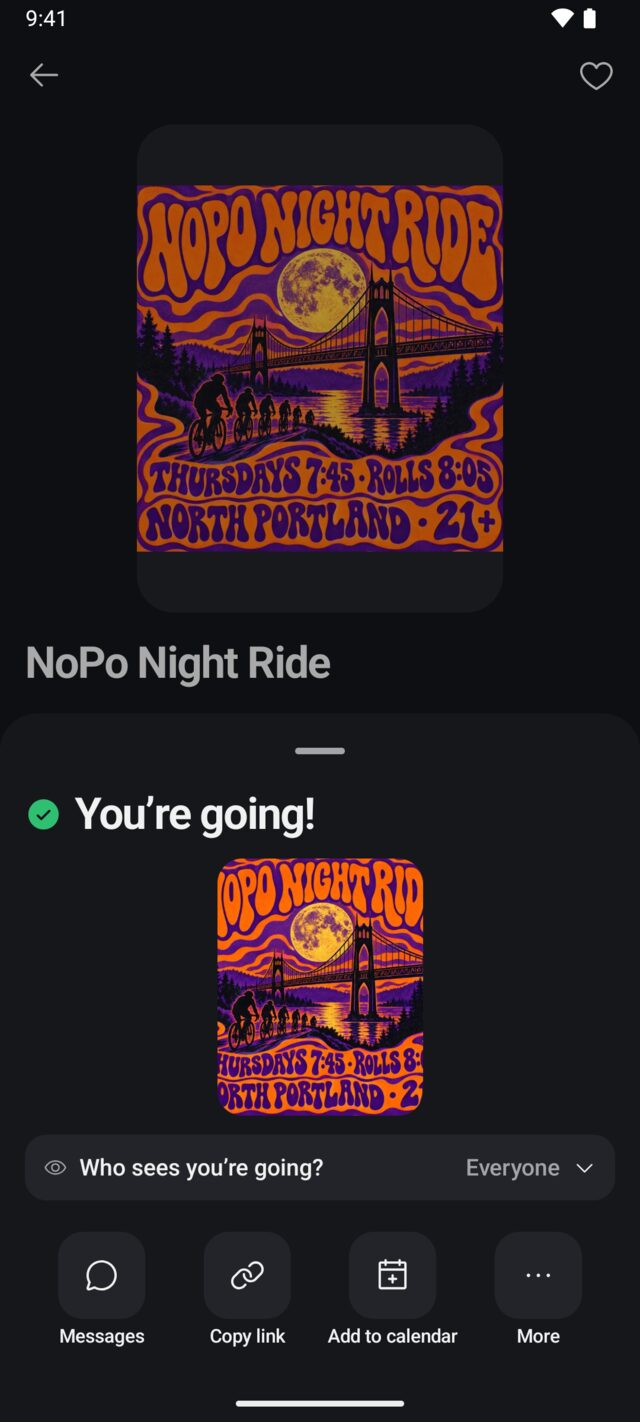
Saying you’re going also lets Biiikes help you remember your plans.
You’ll get a reminder before the ride, a heads-up if the weather looks questionable, and a quick check-in afterward to ask how it went.
When will I get reminded?
It depends on when the ride starts.
- Morning rides before 9 AM: A reminder at 7 PM the evening before.
- Evening rides starting at 5 PM or later: A reminder about two hours beforehand.
- Everything in between: A reminder at 8 AM that morning.
These times follow Portland’s local time.
And if this is your very first group ride, we’ll send you an extra note at 6 PM the evening before to help you get ready.
What if my plans change?
No worries. It happens!
Once you’ve marked yourself as going, the button changes to You’re going.
Tap it if you need to change your plans.
In the mobile apps, you’ll find options to change who can see that you’re going, add the ride to your calendar, or choose I’m not going.
On the website, tapping You’re going removes your attendance.
You can also use Can’t make it in your notifications.
And don’t worry, nobody gets an announcement that you’ve changed your mind.
What if I’m interested but not ready to commit?
Save it for later!
Tap the heart on a ride page to save it.
Saved rides appear on your profile, making them easy to find again.
For one-time rides, you’ll also get a reminder at 6 PM the evening before.
Saving a ride doesn’t add you to the Who’s going list. It’s just a way to keep something on your radar.
Also, keep in mind that saved rides are visible to people who can view your profile. If your profile is private, that’s limited to your followers.
Add rides to your own calendar
If you’re someone who lives by their calendar, this one’s for you.
You can add rides from Biiikes to the calendar you already use.
There are two ways to do it.
Add one ride
Open a ride page and tap Add to calendar.
On the website, you can choose Apple Calendar, Google Calendar, or Outlook.
Keep all your rides in sync
Want your rides to show up automatically?
Go to Settings › Account › Calendar link.
Biiikes will give you a private calendar subscription link that includes rides you’re going to, rides you’ve attended, and one-time rides you’ve saved.
Add that link to your calendar app once, and your rides will stay up to date without having to add them individually.
A couple of important things: the link is private, and anyone who has it can see those rides. Treat it like a password.
It’s also only shown once, so copy it into your calendar app when you create it.
If you ever need to replace it, choose Make a new link. Your old link will stop working.
And if you’re really enthusiastic, the website also offers a subscription to the entire Portland ride calendar.
What happens after a ride?
Hopefully, you’ve had a great time!
After a ride you said you were going to, Biiikes will check in and ask a simple question:
How was it?
You’ll have two options:
- I went: The ride gets added to your riding history.
- I didn’t make it: We note that privately, and that’s that.
The check-in comes when the ride is scheduled to finish, or about three hours after it starts if no ending time was provided.
If you miss it, we’ll ask once more the following day. We won’t keep pestering you.
You can also mark yourself as having attended from a past ride’s page. On the website, this is available even if you didn’t RSVP beforehand. In the apps, it’s available for rides you’d marked as going.
Over time, your profile keeps track of how many rides you’ve attended.
It’s a nice little record of your adventures around Portland.
You get to choose who can see that count, too.
Let Biiikes keep you in the loop
One of the more useful things Biiikes can do is help you stay informed about the rides you care about.
Because let’s face it, plans change.
A ride gets canceled. The forecast turns ugly. You forget that the ride you were excited about is happening tomorrow.
Biiikes can help with all of that.
Notifications on your phone
The first time you mark yourself as going to a ride in the iPhone or Android app, we’ll ask if you’d like to turn on notifications.
Choose Turn on if you’d like reminders and updates delivered to your phone.
Not interested? Tap Not now.
You can always change your mind later.
On the website, your notifications live in the bell, and you can receive certain updates by email.
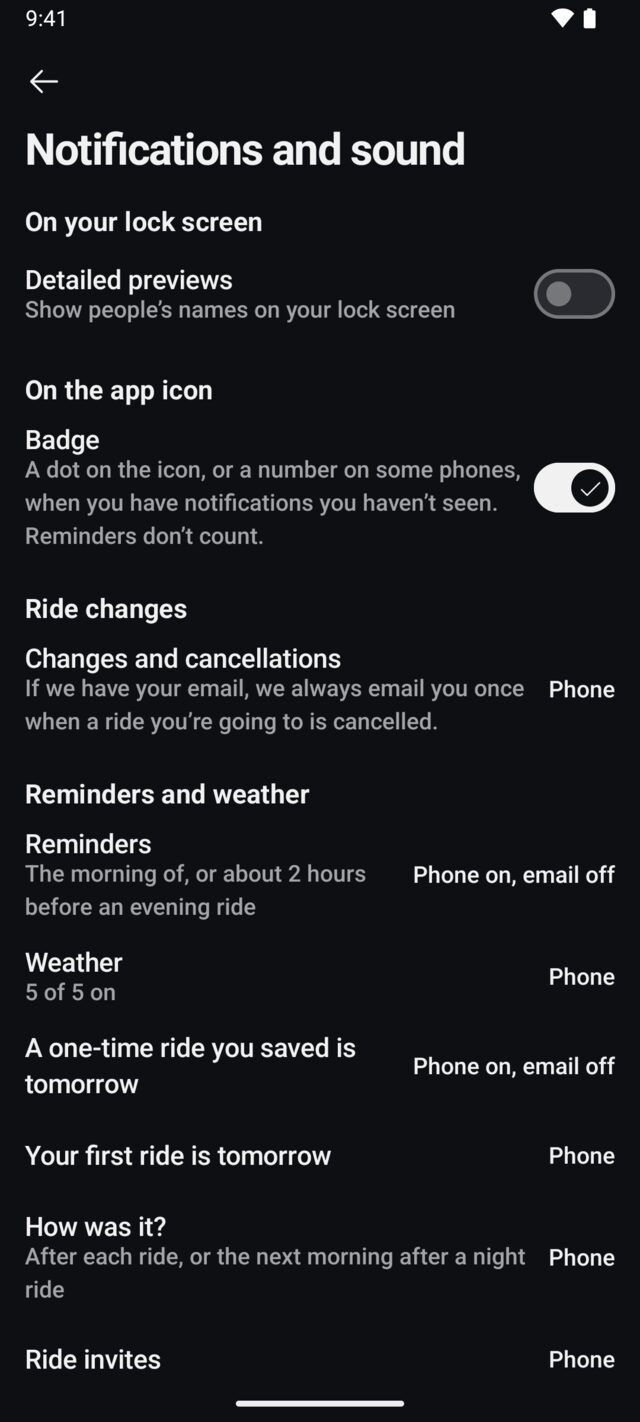
What kinds of notifications are there?
Biiikes can let you know about:
- Ride cancellations. If a ride you’re going to or a one-time ride you’ve saved is canceled, we’ll let you know.
- Reminders. A little nudge before a ride starts.
- Weather changes. A heads-up if conditions might make riding unpleasant or unsafe.
- Your first ride. An extra reminder before your very first group ride.
- After-ride check-ins. A chance to record whether you attended.
- New followers. When someone starts following you or requests to follow your private profile.
- Account activity. Important information about your account and security.
Notification categories start enabled, and you can turn off the optional ones you don’t want.
Find the controls under Settings › Notifications and sound.
What if my ride gets canceled?
If a ride you’re going to, or a one-time ride you’ve saved, gets canceled, Biiikes will send you a notification.
If you were planning to attend and we have your email, we’ll also send you an email.
Ride leaders can change meeting times and locations, too. Since those changes aren’t currently delivered to everyone as phone notifications, it’s a good habit to check the ride page one more time before heading out.
The ride page will show the latest information from Shift.
What about bad weather?
Portland weather likes to keep things interesting.
If a ride you’re going to or a one-time ride you’ve saved is happening within the next 24 hours, Biiikes watches for conditions that might affect your plans.
That includes:
- A 50% or greater chance of rain.
- Temperatures of 90°F or higher.
- Temperatures of 35°F or lower.
- Strong winds.
- Poor air quality.
- National Weather Service warnings.
If conditions look concerning, we’ll give you a heads-up.
And if the forecast improves, we’ll let you know that, too.
Of course, everyone has a different tolerance for bad weather.
If a little rain doesn’t bother you, you can adjust your thresholds in the Weather settings.
And if you change your mind, Use the defaults puts everything back.
Can I keep notifications quiet at night?
Absolutely.
Under notification settings, you can turn on Quiet hours.
They’re off by default, but when enabled, they’ll normally run from 10 PM to 7 AM.
You can change those hours to fit your schedule.
Most notifications will wait until morning, although important account alerts and time-sensitive reminders for upcoming rides can still come through.
What’s the bell for?
The bell is your notification inbox inside Biiikes.
It’s where you’ll find reminders, updates, follow requests, and other activity.
Even if you’ve turned off certain notifications on your phone, you’ll still be able to find them here.
You can also take action without leaving the bell.
For example, you can mark yourself as unable to attend a ride, confirm that you went, accept a follow request, or follow someone back.
What about email?
Optional email reminders are off until you enable them in Settings.
Some important account-related messages, like changes to your email address, phone number, or account sign-ins, are always sent by email, if you’ve added one.
Make your profile your own
Your profile is your little home on Biiikes.
It’s where people can learn a bit about you, see the rides you’ve attended if you’ve chosen to share them, and find ways to connect.
You can keep things simple or fill in a little more personality.
Under Edit profile, you can change your:
- Profile photo.
- Name and username.
- Pronouns.
- Bio, up to 160 characters.
- Instagram and Strava links.
You can also add a cover photo from the mobile apps. On the website, there’s room for one additional link.
Your username can contain letters, numbers, and underscores, and must be between 2 and 30 characters.
One thing worth knowing: you can only change your username once a year, so pick something you’ll be happy with.
When you upload a new photo or cover image, Biiikes checks it before making it visible to everyone else.
You’ll see Being checked while that’s happening. Other people will continue seeing your previous image until the new one is approved.
Public or private? It’s your choice.
Privacy matters, especially when an app involves real people meeting in real places.
That’s why Biiikes gives you control over your profile and what you share.
If your profile is Public, people can follow you without asking.
If it’s Private, people have to request permission, and you decide whether to accept.
You can change this anytime under Edit profile or Settings › Who can see what.
If you switch from public to private, your existing followers stay.
If you switch from private to public, any pending follow requests are automatically accepted.
When someone who doesn’t follow you visits your private profile, they’ll only see a few basic details: your photo, name, username, and pronouns.
Everything else stays private, along with a button to request to follow you.
Who can see that I’m going to a ride?
This is one of the things we think is especially important to get right.
Sometimes you’re happy to let everyone know where you’re going.
Other times, you’d rather keep your plans within a smaller circle.
Biiikes lets you choose.
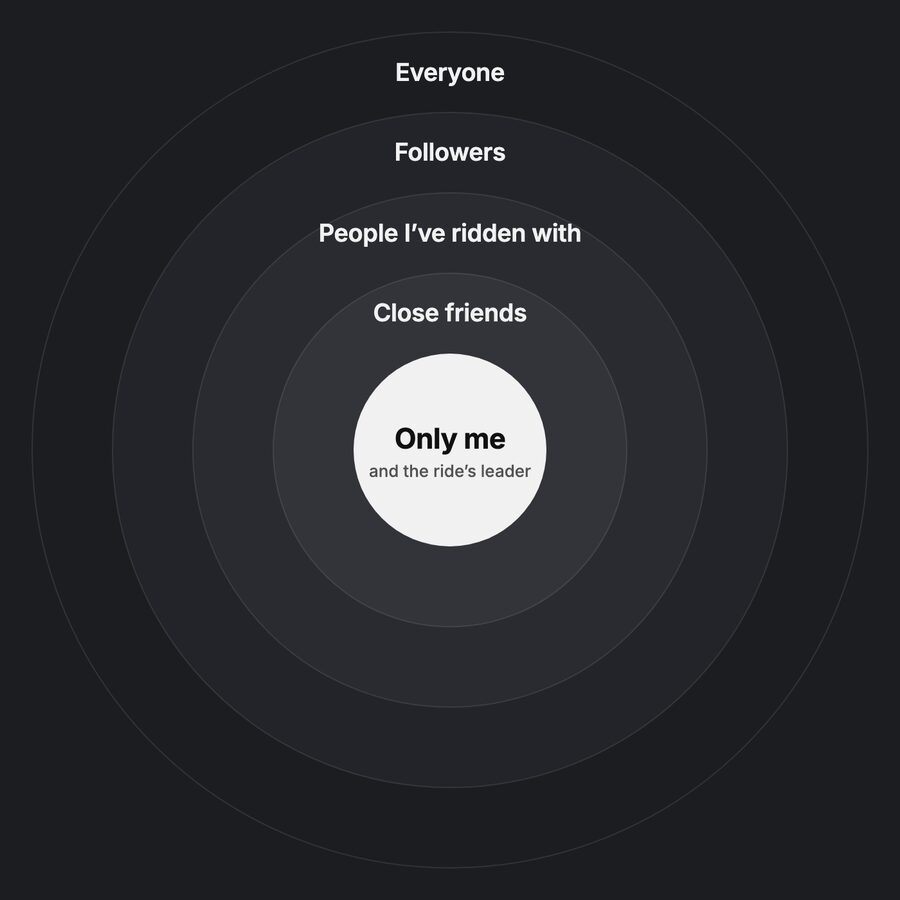
There are five visibility levels:
- Only me. Your attendance is visible to you and the ride’s leader.
- Close friends. People you’ve specifically marked as close friends.
- People I’ve ridden with. People you’ve attended rides with, plus your close friends.
- Followers. Your followers, people you’ve ridden with, and close friends.
- Everyone. Any signed-in Biiikes rider.
Each level includes the people in the smaller circles.
People who aren’t signed in never see your name in the attendee list. They’ll only see a blurred face.
For adults, the default is Everyone.
For riders under 18, the default is Followers, and the Everyone option isn’t available.
You can set your usual preference under Settings › Who can see what › Where you’re going.
And if you want to make an exception for a particular ride, that’s easy, too.
Just change the visibility from the You’re going! confirmation or the You’re going button on that ride’s page.
Find your people
Group rides are about more than riding bikes.
They’re also a great way to meet people, make friends, and find a little community.
Biiikes gives you a few ways to stay connected with the people you meet along the way.
Following someone
See someone you’d like to keep in touch with?
Visit their profile and tap Follow.
If their profile is public, you’ll start following them right away.
If it’s private, they’ll receive a follow request and can choose whether to accept.
And if someone already follows you, you’ll see Follow back.
You can unfollow someone whenever you like by tapping Following, then Unfollow.
You can also remove someone from your followers list.
Neither action sends them a notification.
What are close friends?
Close friends are people you’ve chosen to put in a smaller, more personal circle.
It’s handy when you want to share certain plans with a few people rather than everyone.
You can add someone as a close friend from their profile, or under Settings › People › Close friends.
Marking someone as a close friend also follows them, or sends a follow request if their profile is private.
They won’t get a notification that you’ve marked them as a close friend.
What’s with the colored rings?
You might notice colored rings around people’s profile photos.
They’re little visual shortcuts that help you recognize your connections.
- Blue ring: Someone you follow.
- Green ring: Someone you’ve marked as a close friend.
These colors are personal to you. Other people don’t see your relationship labels.
It’s a simple way to spot familiar faces when you’re checking who’s going to a ride.
What if there’s someone I don’t want to interact with?
We want Biiikes to be a place where people feel comfortable participating in their cycling community.
That includes giving you tools to manage unwanted interactions.
You have a few options, depending on the situation.
Block someone
If you don’t want someone interacting with you on Biiikes, you can block them.
Visit their profile, tap ···, and choose Block.
Blocking prevents them from viewing your profile or the rides you’re going to.
Any existing follow relationships between you are removed, and they won’t be notified that you blocked them.
One important detail: blocking someone doesn’t remove either of you from a ride you’re both planning to attend.
You can manage blocked accounts under Settings › People › People you’ve blocked.
Get a warning about a particular rider
Sometimes you don’t necessarily want to block someone, but you would appreciate knowing if they’re planning to attend the same ride.
That’s what Warn me about this rider is for.
You can find it in the ··· menu on someone’s profile.
Once you’ve added them, Biiikes will show you a private visual warning on rides they’ve marked themselves as going to.
They won’t be notified, and nobody else sees your warning.
You can manage this list under Settings › People › Warn me.
Report someone
If someone’s behavior violates Biiikes’ community rules, you can report them.
In the iPhone and Android apps, visit their profile, tap ···, and choose Report.
You’ll be asked to select a reason, such as harassment, bullying, spam, or a scam.
The person you’re reporting won’t be told who submitted the report.
For especially serious concerns, including harassment, violence, threats, sexual content, or child safety, Biiikes will also automatically block that person and turn on your private rider warning.
You can see your reports and any responses under Settings › Your reports.
If you disagree with the outcome, you can request another review once within 30 days.
On the website, visit Settings › Help › How to report a rider for reporting instructions.
If you’re in immediate danger, call 911.
Managing your account
Most of the everyday account controls live under Settings.
You probably won’t need to visit them very often, but here’s where to find the important stuff.
Changing your phone number or email
Head to Settings › Account.
Under Signing in, you’ll see your phone number and email address.
Neither is publicly visible.
To change your phone number, we’ll send a verification code to the new number.
To change your email, we’ll send a verification link to the new address.
If you have a verified email, we’ll also send a message there letting you know something changed. When you change your email, it goes to your old address.
That message includes an Undo this change option, available once for seven days. Using it restores the old contact information and signs out your devices.
One useful tip: add an email address even if you normally sign in with your phone.
That way, if you ever change phone numbers or lose access to one, you’ll still have another way to sign in.
If your birthday is incorrect, contact us at [email protected] and we’ll help sort it out.
Signing out
You can sign out of your current device from the bottom of Settings.
Want to see all the devices where you’re signed in?
Go to Settings › Devices and apps.
You can sign out of a particular device or choose Sign out everywhere.
What if I want to leave Biiikes?
That’s entirely up to you.
Under Settings › Your data, you’ll find two options.
Leave
Think of this as taking a break.
Your profile becomes hidden, you disappear from Who’s going lists, and Biiikes stops sending you notifications.
Your information isn’t deleted, though, so you can come back whenever you’d like.
Just sign in again. On the website, you’ll also tap Come back to restore your account.
Erase everything
This is the permanent option.
Your account disappears from view immediately, and seven days later your information is deleted.
During those seven days, you can cancel the deletion by signing in on the website and choosing Keep my account. The mobile apps don’t offer this recovery option.
After that, the deletion is permanent.
You can learn more at biiikes.com/delete-account, even if you’re not signed in.
Need a little help?
We’re happy to help!
You’ll find useful resources under Settings › Help, including community rules, reporting information, and account deletion instructions.
On Android, these options appear directly in Settings.
You can also email us anytime at [email protected].
New to group riding?
If you’ve never been on a group ride before, we’ve got a guide just for you.
Your first group ride walks you through finding a beginner-friendly ride, what to bring, what happens when you arrive, and what terms like “party pace” and “no-drop” actually mean.
And yes, it covers what to do when you don’t know anyone.
(Spoiler: that’s completely normal.)
You’ll find it at biiikes.com/first-ride.
Thinking about leading your own ride?
You can do that, too!
How to lead your first group ride covers everything from coming up with an idea and planning a route to listing your ride on Shift and looking after your riders.
You don’t need to be an expert to get started.
That guide is coming to biiikes.com/lead-a-ride.
Ready to ride?
That’s really all there is to it.
You don’t need to learn every feature or set up a perfect profile before getting started.
Just open the calendar and see what’s happening.
Find something that sounds fun. Check out the details. Maybe see if someone you know is going.
And when you’re ready, tap I’m going.
We’ll help you remember when and where to show up, keep an eye on the weather, and make it easier to connect with people along the way.
The rest is the fun part.
Find a ride. Show up. Say hello. Ride bikes.
We’ll see you out there!